Documentation
Setup takes an administrator about fifteen minutes. The rest of this page is how each part behaves once agents are using it, and what to do when something is refused.
What gets installed
TextSend adds three places to Zendesk Support:
- Ticket sidebar
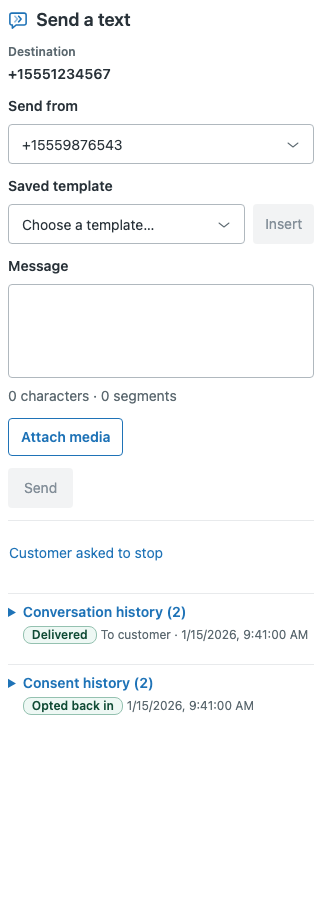
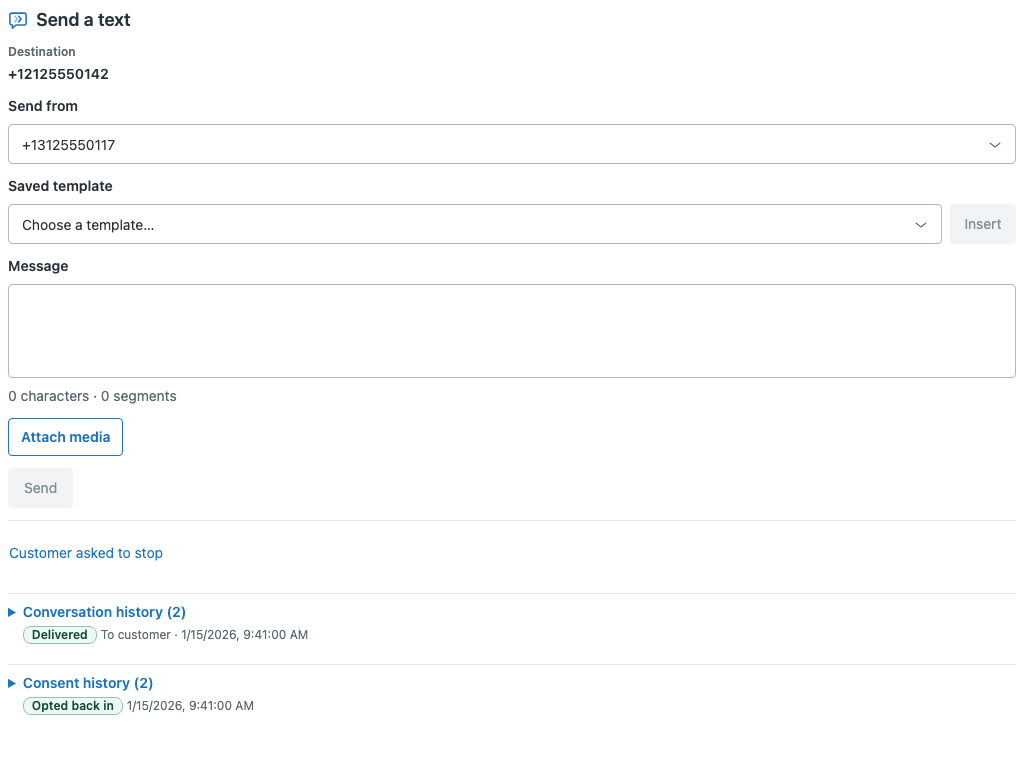
- The composer agents use. Destination, sending number, saved template, message, media, Send. Below it, the conversation and consent history for this customer.
- TextSend page
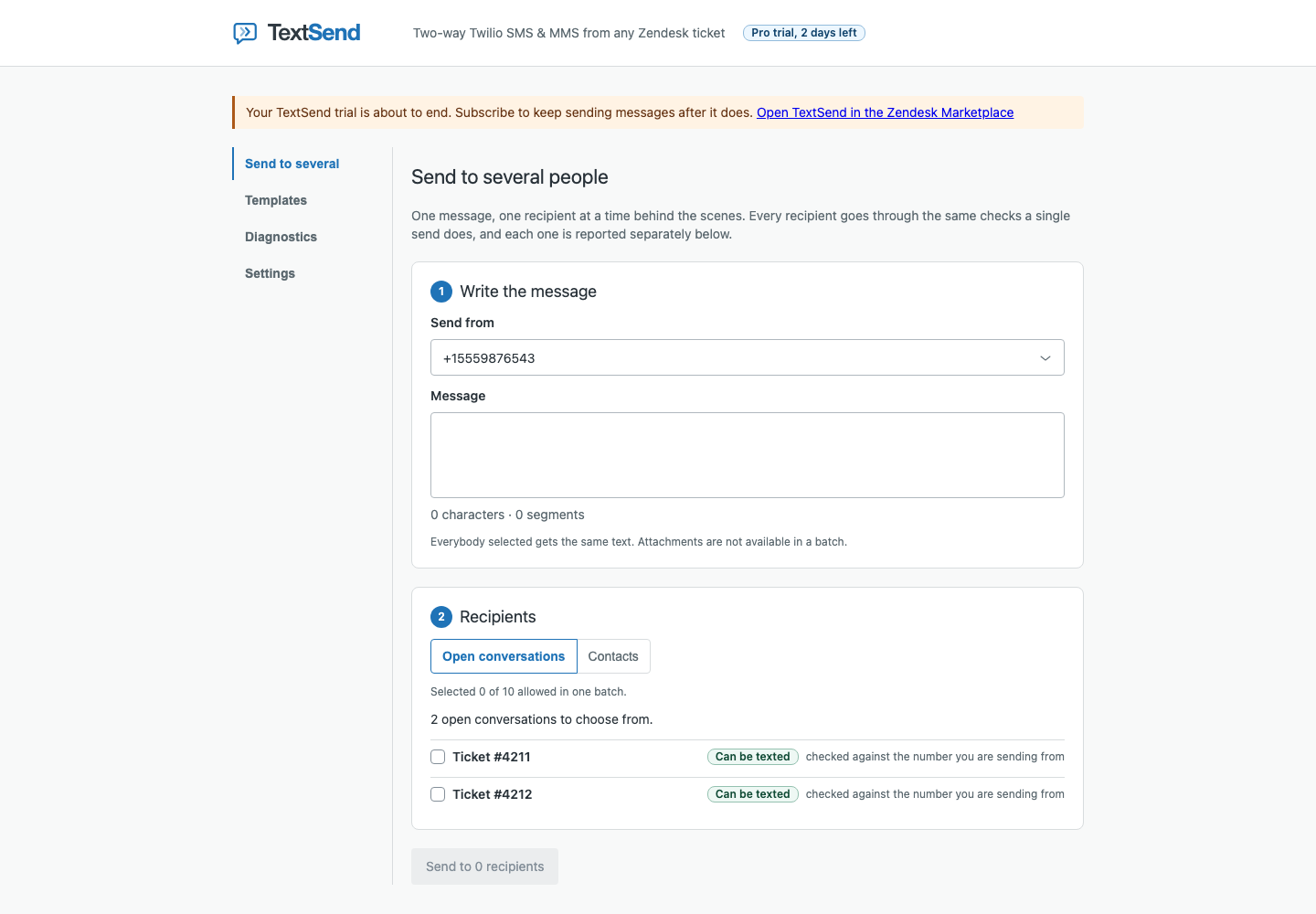
- In the left navigation. Four tabs, in the order the page is used: Send to several, Templates, Diagnostics, Settings. Agents see Send to several and Diagnostics; Templates and Settings are for administrators.
- User sidebar
- On a Zendesk user profile. Starts a new conversation with that person when there is no ticket yet.
Before you start
- You are a Zendesk administrator. Install and Settings both need one; TextSend confirms it through a Zendesk authorization window, not a role claimed by the browser.
- A Twilio account with at least one SMS-capable number, and its Account SID and auth token from the Twilio Console.
- For US local numbers, an A2P 10DLC brand and campaign registered in Twilio, or a plan to register one. Carriers filter unregistered traffic.
1. Install
- Open TextSend on the Zendesk Marketplace (coming soon) and choose Install. Pick the Zendesk account. The 14-day trial starts now.
- Zendesk asks you to authorize TextSend to read and write tickets, users and comments on your account. This is what lets it write private notes. Authorize with your own administrator account: TextSend asks Zendesk who authorized and refuses anyone else.
- TextSend then shows this installation’s signing secret, once, with a copy button. Copy it before you leave the page; it is never shown again.
- The installer shows three settings. Marketplace installs arrive with the first two filled in; the third is the signing secret you just copied:
- TextSend backend host
- The host name on its own, no https://, no port and no path, e.g.
api.textsend.app. Zendesk will only send the signing secret to this host. - TextSend backend address
- The same host as an https:// URL with no query string. Its host must match the one above; the app refuses an address that doesn’t.
- TextSend signing secret
- The secret the install showed. Zendesk stores it and never hands it to the app in the browser; it is used only to sign requests to the backend.
- Finish the install. TextSend appears in the ticket sidebar and in the left navigation.
invalid_oauth_state, oauth_exchange_failed, installer_not_admin or tenant_already_bound, the fix is in the error code reference. Each is cleared by restarting from the Marketplace listing as an administrator, or by uninstalling the earlier copy first./v1/installations/zendesk/rekey/start?subdomain= and your Zendesk subdomain on your TextSend backend host, and authorize in Zendesk. TextSend then asks you to confirm the replacement; confirm within five minutes in the same browser, and paste the new secret into the app’s settings. The old secret stops working when you confirm. A refusal names a code such as installer_not_admin, rekey_not_installed, rekey_confirmation_invalid or rekey_already_confirmed, which means the page was submitted twice and the first submission was accepted; if no page showed you a new secret, start a new recovery.2. Connect Twilio
- In the Twilio Console, open the account dashboard and copy the Account SID (starts with
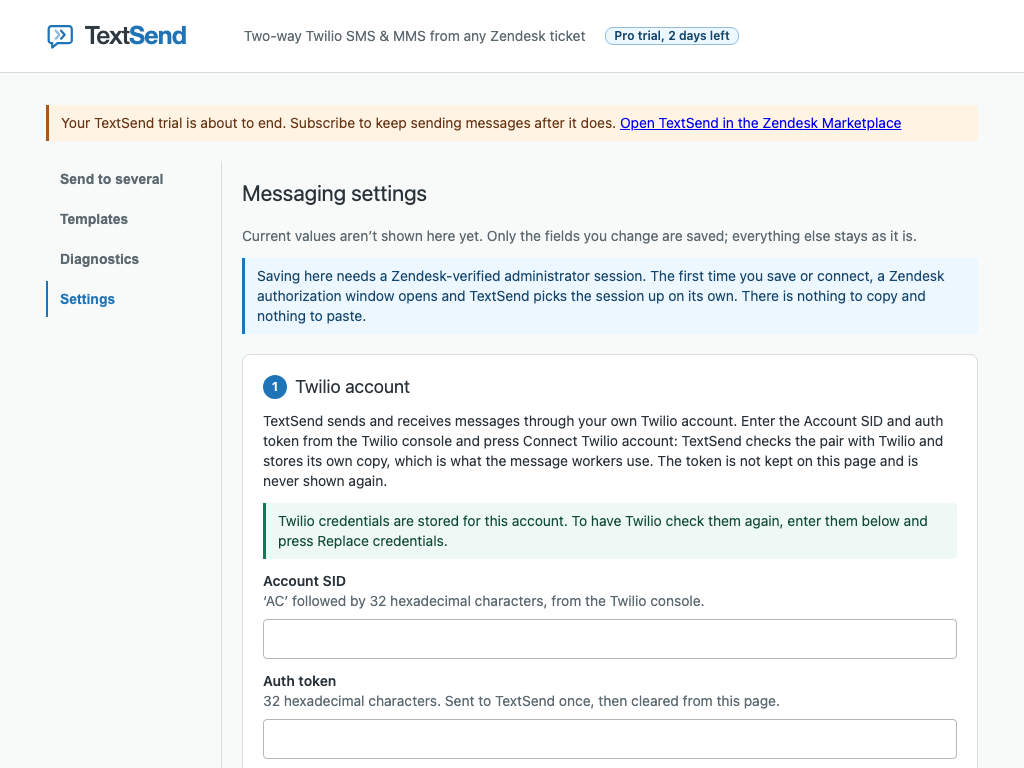
AC, 34 characters) and the Auth token (32 characters). - In Zendesk, open the TextSend page → Settings → step 1, Twilio account.
- The first time you save or connect, a Zendesk authorization window opens to confirm you are an administrator. TextSend picks the session up on its own; there is nothing to copy or paste.
- Paste both values and press Connect Twilio account. TextSend checks the pair with Twilio before storing anything.
What you’ll see if it is refused:
invalid_twilio_credentials- A value isn’t the shape Twilio issues, or the two are swapped. Nothing was sent to Twilio.
twilio_credentials_rejected- Right shape, but Twilio refused the pair. Re-copy from the Console; any credentials already stored are untouched.
twilio_validation_unavailable- Twilio could not be reached, so the pair was never judged. Try again shortly.
3. Sending numbers
Settings step 2, Sending numbers, lists the SMS-capable numbers TextSend finds on your Twilio account. Turn on the ones agents may send from.
- Press Refresh from Twilio if a number you have just bought isn’t listed.
- Enable a number. TextSend writes the inbound-message and status-callback webhooks on that number in Twilio for you, pointing at the backend. If that write fails you’ll see
webhook_configuration_failed; the number stays off until it succeeds. - Stay within your plan: 2 numbers on Starter, 15 on Pro. Numbers past the cap still receive but cannot send (
number_over_plan_cap).
4. A2P 10DLC registration (US)
US carriers require business texting from 10-digit local numbers to be registered to a brand and a campaign. Registration happens in Twilio under your account; TextSend does not register on your behalf and does not attach numbers to Messaging Services.
- In the Twilio Console, register a brand (your business) under Messaging → Regulatory compliance.
- Create a campaign describing customer-support conversations. Low-volume standard campaigns suit most support teams.
- Attach your sending numbers to the campaign’s Messaging Service.
- Back in TextSend, open Diagnostics. The A2P 10DLC row reads brand and campaign status from Twilio each time it loads.
The Diagnostics panel reads one page of each Twilio list and reports campaigns across the whole account, so it tells you whether a verified campaign exists, not that it covers a particular number. Confirm the number-to-campaign attachment in Twilio.
Twilio's guide: A2P 10DLC registration.
5. Verify in Diagnostics
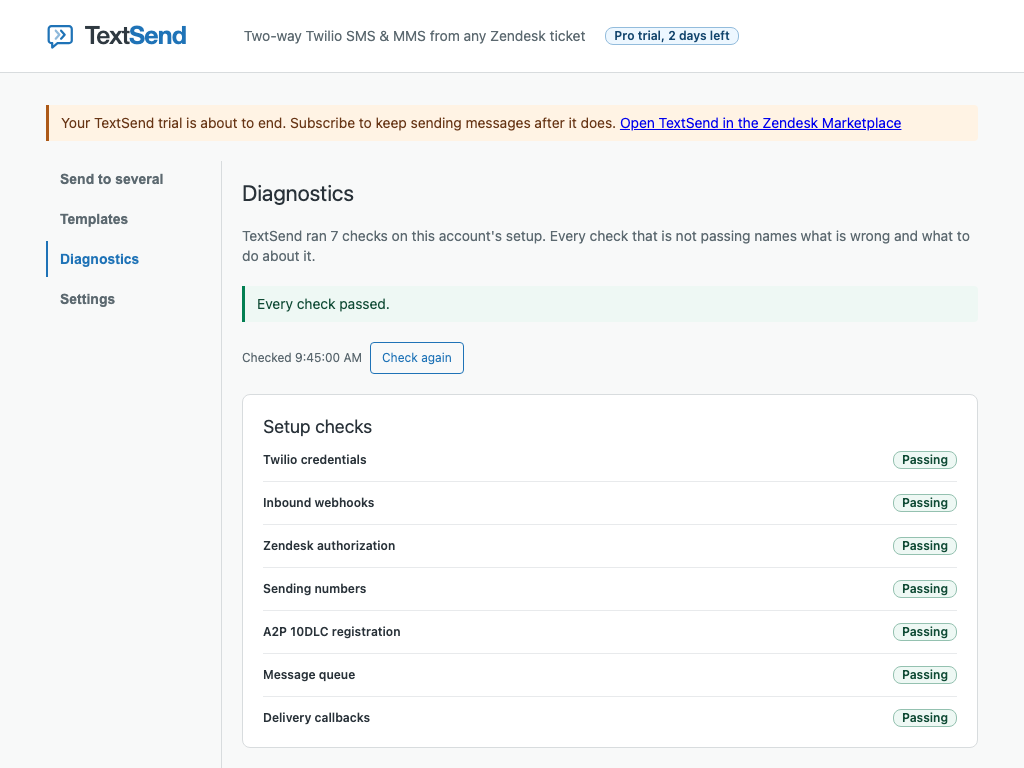
Open TextSend → Diagnostics. When all seven rows show Passing, send a test text to yourself from any ticket. The private note should appear at once and change to Delivered within a few seconds; reply to it and the reply should appear as a second note.
Settings reference
Step 3, Routing and identity, holds everything that isn’t credentials or numbers. Only the fields you change are saved.
- Default country
- Used to normalise a phone number entered without a country code. A number that still can’t be normalised is refused with
invalid_phone_number. - When a customer texts a closed ticket
- Whether a reply to a solved-and-closed ticket reopens a follow-up or starts a fresh ticket. Conversations stay attached to their ticket for 14 days after the last message by default.
- Secondary phone fields
- Extra Zendesk user fields to search when matching an inbound number, beyond the primary phone.
- Identity conflict fallback requester
- The user a new ticket is filed under when an inbound number matches more than one person and nobody has resolved it yet. The ticket is flagged for an agent to choose.
- Quiet hours
- Start, end and time zone. During the window TextSend will not start a new conversation; replies inside an open conversation still go. See Quiet hours.
- Agents may send during quiet hours
- Off: a send during the window is refused. On: the agent is asked to confirm, and the confirmation is recorded on the ticket.
- Send to several: recipients per batch
- How many people one batch may address, up to a ceiling of 25. The interval between batches cannot be set below 60 seconds.
- Who may send
- Restrict sending to roles or groups. See Who may send.
Send a text
- Open a ticket. The sidebar shows Destination: the requester’s phone number. If the requester has no usable number the composer says so instead of guessing (
requester_has_no_phone). - Choose Send from. Only numbers an administrator has turned on are listed.
- Write the Message, or pick a Saved template and press Insert, then edit. The counter shows characters and SMS segments; each segment is billed by Twilio.
- Attach media for MMS. Media is uploaded to Twilio and held by TextSend for at most 24 hours.
- Press Send. A private note is written to the ticket immediately with the message, both numbers and a status. The status changes on that same note as Twilio reports Queued → Sent → Delivered (or Failed, with the reason).
If a send is refused, the composer explains in plain words and shows the code under Technical details. Pressing Send again after a transient refusal retries the same message rather than creating a second one; the error reference says which refusals are safe to retry.
Conversation history
Below the composer, Conversation history lists every message to and from this customer on this ticket with its delivery status and time. The same content is on the ticket as private notes; the history is the quick view. Consent history lists opt-outs and opt-ins with who recorded them.
Replies and matching
An inbound text arrives at one of your Twilio numbers. TextSend validates Twilio’s signature, then decides where it belongs:
- If the pair of numbers (customer ↔ your number) has an open conversation, the text is written to that ticket. A conversation stays open for 14 days after its last message by default.
- Otherwise TextSend searches Zendesk users by phone number (primary field plus any Secondary phone fields). One match: a new ticket is opened for that requester, or their closed ticket is followed up, per the closed ticket setting.
- No match: a new ticket is opened with a new end-user created from the number.
- More than one match: an identity conflict. The ticket is filed under the fallback requester and flagged; an agent picks the right person from the sidebar, and that ruling is remembered for later threads.
identity_undetermined until the duplicate records are cleaned up in Zendesk.Conversations on other tickets
One customer can have several tickets, but one phone-number pair has one open conversation. If you send from a ticket that doesn’t hold it, the composer shows a conflict notice naming the ticket that does (route_transfer_required). You can continue from that ticket, or, if an administrator has allowed it, choose Send anyway to move the conversation here. The move is noted on both tickets. A move that would put two different identity decisions on one ticket is refused (route_transfer_identity_conflict).
Consent and STOP
- A customer who texts STOP (or an equivalent keyword) is marked opted out for your account. Twilio also enforces this at the carrier level.
- The composer shows Customer asked to stop, Send is disabled, and a send attempted anyway is refused before it reaches Twilio (
opt_out_blocked). - START opts back in. An agent may also record an opt-out or opt-in the customer gave by other means; it is logged with the agent’s name in Consent history.
Quiet hours
With a window set, a send that would start a new conversation during it is held back. Replies within an open conversation are always allowed. What the agent sees depends on the Agents may send during quiet hours setting: off, the send is refused with the window named (quiet_hours_blocked); on, the composer asks the agent to confirm, and the confirmation is recorded on the ticket (quiet_hours_override_required).
Send to several
One message to several people, each sent and checked individually. It is for transactional notices to a handful of customers (an outage, a store closure), not campaigns: batches are capped at the number in Settings (at most 25) and spaced at least 60 seconds apart.
- Pick Send from and write the message. Attachments aren’t available in a batch.
- Choose recipients from Open conversations (tickets with a live thread on that number) or Contacts (search Zendesk users). Each row says whether that person can be texted from the chosen number, and why not if not.
- Press Send to N recipients. What happened to each recipient lists the result per person; a refused recipient shows its code and whether retrying the batch will include them.
Templates
Administrators manage saved templates on the Templates tab; agents insert them in the composer and can edit before sending. Up to 200 per account; a name of up to 80 characters and a body of up to 1600.
entitlement_requires_pro). Saved templates are kept: the Templates tab still lists them, an administrator can delete them there, and they come back once the account is on Pro.Merge fields are filled when an agent inserts the template, written as {. Available: requester.first_name, requester.name, ticket.id, agent.first_name, agent.name. Anything else is refused on save (invalid_sms_template_merge_field).
Import from macros turns the text of an existing Zendesk macro into a template.
Every template save, an import included, refuses a name or body that is, as a whole, a phone number in international (+) format or a URL with a path (sms_template_carries_sensitive_value). A number or link inside longer text is not caught: templates are shared text, so keep a customer’s data out of them.
Who may send
By default any agent can send. In Settings you can restrict sending to administrators only, or to members of named groups. Restrictions are enforced by the backend against the agent’s verified Zendesk identity, never by hiding the button. A restriction that would lock out the administrator saving it is refused (access_restrictions_self_lockout). An agent outside the allowed set sees why under Technical details (agent_session_not_permitted).
Diagnostics
Seven checks, read from the backend each time the tab loads or you press Check again. Each is Passing, Needs attention or Failing; a non-passing row carries what is wrong and To repair, written by the check itself. Agents can open Diagnostics too, so a refused send can be looked up without a settings login; the page never shows a credential or a phone number.
- Twilio credentials
- The stored pair is still accepted by Twilio. Fails after Twilio rejects it, or after several consecutive rejected sends suspend sending (
twilio_credentials_suspended); re-entering the pair clears both. - Inbound webhooks
- Each enabled number’s webhooks in Twilio point at TextSend.
- Zendesk authorization
- The OAuth grant from install is valid and can write notes.
- Sending numbers
- At least one number is enabled and none is past the plan cap.
- A2P 10DLC registration
- Brand and campaign status as Twilio reports them. “Could not verify” means the reading failed, not that you are unregistered.
- Message queue
- Queued sends are being picked up and the oldest isn’t stale.
- Delivery callbacks
- Status callbacks from Twilio have been arriving for recent sends.
Plan and trial notices
The TextSend page header shows the plan and trial state. A banner appears when it needs attention:
- Trial ending
- Shown in the last days of the 14-day trial. Subscribe in Zendesk Admin Center → Apps and integrations to keep sending.
- Trial ended / unpaid / payment incomplete
- Sending stops. Receiving, reading threads, Diagnostics and disconnecting Twilio keep working (
billing_read_only). Access returns on the next billing check after payment, not instantly. - Over the number cap
- More numbers enabled than the plan allows. The oldest-enabled numbers within the cap can send; the rest receive only (
number_over_plan_cap). - Plan not confirmed
- TextSend couldn’t read the subscription. If it lasts more than a day, check the subscription in Admin Center.
Rotating or disconnecting Twilio
- Rotate: in Twilio, create a secondary auth token and promote it to primary. Then, straight away, paste the Account SID and new token in Settings and press Replace credentials. TextSend checks every request from Twilio against the one token it has stored, so between promoting and replacing, sending fails, and incoming replies and delivery updates are rejected; Twilio does not send them again. Rotate at a quiet time, keep that gap short, and send a test message afterwards.
- Disconnect: removes the stored pair. Sending stops and replies no longer reach Zendesk until you connect again. Webhook URLs on your numbers are left as they are. If the disconnect reports
twilio_credential_disconnect_incomplete, press Disconnect again to finish.
Uninstall and deletion
Uninstall from Zendesk Admin Center → Apps and integrations. Uninstalling is also how you cancel: it is the cancellation Zendesk documents for a Marketplace subscription, and when billing stops follows the Zendesk Marketplace’s own billing rules. Deletion usually starts about a week (7 to 8 days) after the app is removed, and always within 30 days of removal: TextSend checks daily and starts 7 days after it first sees the app missing. When deletion starts, TextSend deletes your Twilio credentials and stops all processing. Phone numbers, ticket references and delivery status are purged within 30 days after deletion starts. Private notes already on your tickets stay in Zendesk; they are yours. Remove the webhook URLs from your Twilio numbers if you won’t reinstall, so Twilio stops calling an endpoint that no longer knows your account.
When you contact support
TextSend operators work from an internal console. It shows your account by its Zendesk subdomain: plan and trial status, the result of the same seven health checks your Diagnostics tab runs, and whether a message was dead-lettered on its way out or in. It never shows phone numbers, message text or media: those are not stored in a form the console can read.
From there an operator can re-read your billing from Zendesk at once rather than waiting for the nightly check, pause and resume sending for your account at your request, and retry a stuck message once its cause is fixed. Every one of those actions is recorded in an audit log with the operator who took it. Deleting your account’s data on request is done there too, and is irreversible.